
Changelog
Keep yourself informed about the most recent additions and improvements we have made to ChassisWatch.
v1.2.02026-10-06
Share automations, schedules, and AppleScript
New
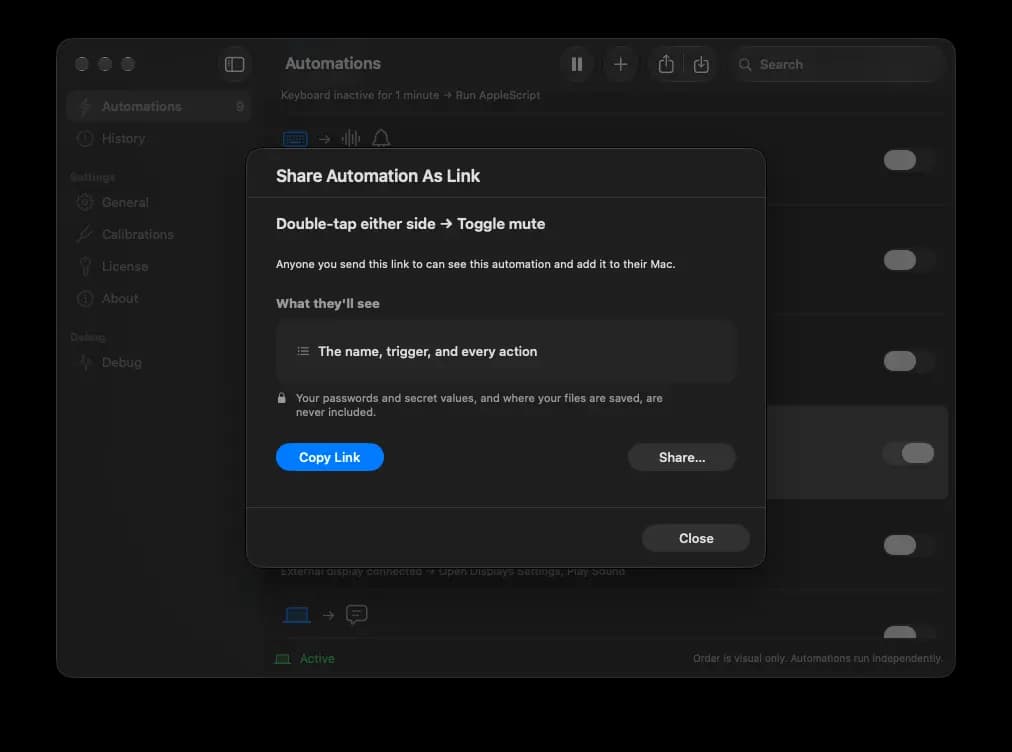
- Share as a link: right-click an automation and choose 'Share...' to send it as a link. The person you send it to sees exactly what it does on chassis.watch, including every script in full, then adds it with Open in App. Secret values and file locations are never included. See how to share an automation.
- Schedules: limit an automation to certain weekdays and a time window, including overnight windows such as 22:00 to 06:00.
- Run AppleScript: run an inline script or an
.applescriptfile. Check Script verifies it before it can run, and you choose whether apps it controls are started first or the run is skipped when they're closed. - Low Power Mode trigger: runs when Low Power Mode turns on or off.
- Thermal State trigger: runs when the Mac's thermal pressure rises or recovers, right away or after it holds for a set time.
- Keyboard Inactivity trigger: runs after no keyboard input for anywhere from 5 seconds to 24 hours.
- Mission Control and Sleep Display actions: Sleep Display turns off the displays while the Mac keeps running.
- Multiple selection: select several automations to enable, disable, duplicate, export, or delete them together.
- Enabled switch: turn an automation on or off right from the list.
Changed
- Tap calibration is completely reworked and is now one screen with live graphs, the detected side and tap count, and a draggable left/right boundary. Calibrations from earlier versions are removed because detection changed, so recalibrate if the defaults don't suit your taps.
- Chassis-tap detection reads the accelerometer about 800 times per second. Every tap automation now uses the calibration in Settings > Calibrations.
- Pause and Resume Monitoring moved to the Automations toolbar. Hold Pause for timed options.
- Export in the toolbar exports the selected automations, and a single automation's file is named after it.
- Import Automations has a redesigned preview that matches the shared-link preview.
- Environment variables in Run Shell Script flag plain values that look like secrets and warn before you export them.
- Automation Status moved to the editor's footer.
Fixed
- Chassis taps are no longer counted twice, so single and double taps aren't detected as doubles and triples. Left taps are no longer often detected as right, and typing no longer triggers false taps.
- Test Action can be stopped, and closing its sheet or the editor stops a running script.
- Run Shell Script checks script files, interpreters, working folders, environment variables, and timeouts before it runs. Problems show next to the field they're about.
- Imported automations no longer show missing secret values as stored.
- Automations made in a newer version are kept instead of dropped when an older version opens them.
v1.1.02026-09-28
New actions for volume, brightness, windows, and System Settings
New
- Increase and Decrease Output Volume: change the output volume by 1, 2, 5, or 10 percent.
- Increase and Decrease Display Brightness: change the built-in display brightness by 1, 2, 5, or 10 percent.
- Show Desktop: hide every app window to reveal the desktop.
- Manage Frontmost App: minimize, hide, or quit the app in front.
- Show Onboarding: go through first-run setup again from Settings > General.
Show Desktop needs Accessibility access, and so do the Minimize and Hide options of Manage Frontmost App. This is the same permission keyboard shortcut actions use.
Changed
- Open System Settings replaces Open Displays Settings. It opens Wi-Fi, Bluetooth, Sound, Battery, Displays, and other panes. Existing automations keep opening Displays.
Fixed
- Set Output Volume now shows Needs Attention when the current output device's volume can't be changed.
v1.0.02026-09-26
First public release
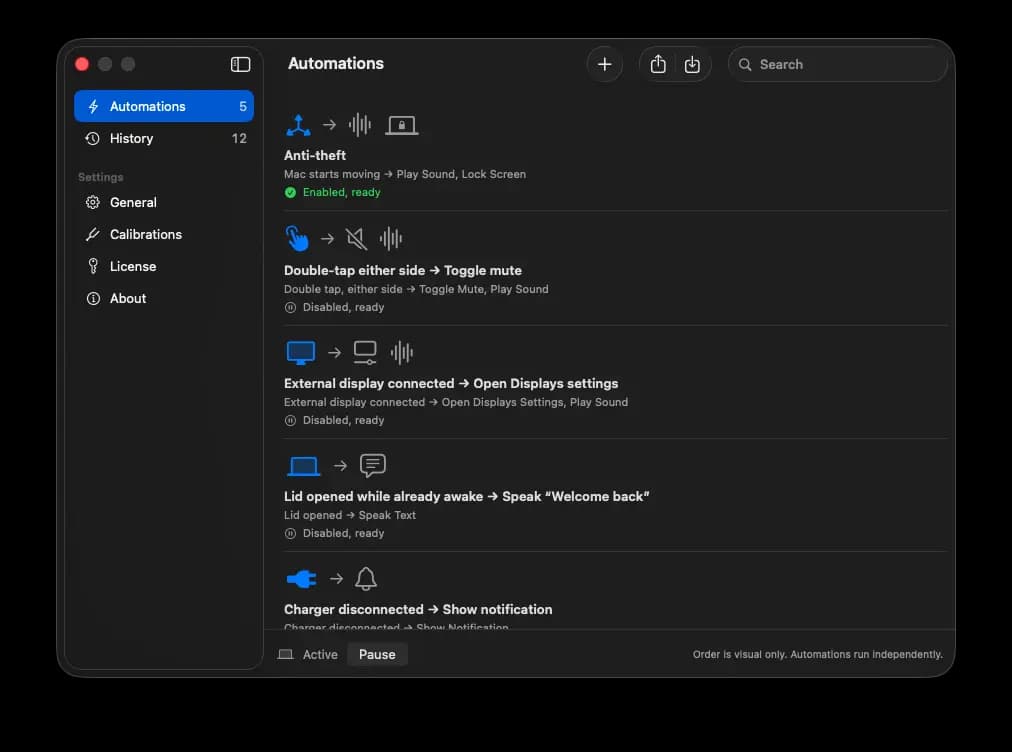
- Ten triggers: chassis taps, movement, lid position, ambient light, charger, battery, USB, external displays, session lock/unlock, and power state.
- Twenty actions: from running a shell script or Apple Shortcut to adjusting volume, brightness, and display settings.
- Multiple actions: give an automation as many actions as you need. They run in order, one after another.
- Automations: create, edit, reorder, enable, and disable automations, with local run history.
- Export and import: save one automation or all of them to a JSON file and import them on another Mac. You see a preview before anything is added, and imported automations start disabled.