
How to Export and Import Automations
ChassisWatch can save your automations to a JSON file. Use it to keep a backup, move your setup to a new Mac, or share an automation with someone else. Nothing is uploaded anywhere. The file stays wherever you save it.
Export automations
To export everything:
- Open Settings and go to the Automations tab.
- Click the Export All Automations button in the toolbar (the square with an arrow pointing up).
- Choose where to save the file. It's named ChassisWatch Automations.json by default. Click Export.
To export a single automation:
- Right-click the automation in the list and choose Export...
- Choose where to save the file and click Export.
Import automations
- Open Settings and go to the Automations tab.
- Click the Import Automations button in the toolbar (the square with an arrow pointing down).
- Pick a file that was exported from ChassisWatch.
- Review the preview. It lists every automation in the file with its trigger, actions, and status. Nothing is added yet.
- Uncheck any automations you don't want, then click Import.
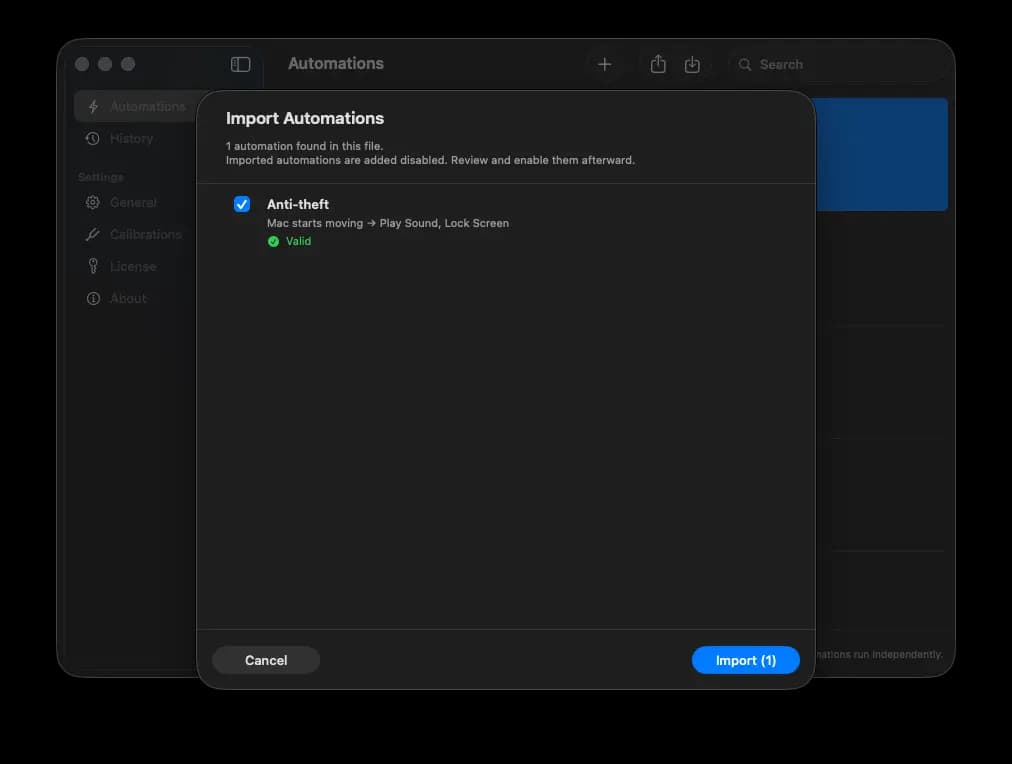
Imported automations are always added disabled, so nothing runs until you've checked it. Open each one, fix anything it needs, then set Status to Enabled and click Save.
If an automation in the file has the same name as one you already have, the imported copy is renamed, for example "Mute on Tap Copy". Your existing automation is never replaced.
What the preview status means
- Valid: the automation is ready. Enable it whenever you like.
- Needs Attention: something the automation relies on isn't set up on this Mac yet. It imports fine, but you'll need to fix it before enabling it.
- Invalid: part of the automation's setup is incomplete. Import it and complete the missing values in the editor.
What carries over, and what doesn't
- Triggers, actions, their order, names, and cooldowns all carry over.
- Files, folders, and apps are saved as their location on disk. If the same file or app exists at the same location on the Mac you're importing to, it's linked automatically. If not, the automation shows Needs Attention and you'll need to pick the file or app again.
- Secret environment variables used by Run Shell Script are never written to the export file. After importing, open the action and enter those values again.
- Run Apple Shortcut actions look for a Shortcut with the same name on the Mac you import to. If there isn't one, the automation shows Needs Attention until you add that Shortcut in the Shortcuts app or pick a different one.
- History, calibration, and your license are not included.
If the import fails
- "This file isn't a ChassisWatch automations export.": the file is a different kind of JSON file. Pick the file you exported from ChassisWatch.
- "This export was created by a different version of ChassisWatch and can't be imported.": update ChassisWatch on this Mac to the latest version, then try again.
- "This file couldn't be read as a ChassisWatch automations export.": the file is damaged or was edited by hand. Export it again from the original Mac.
For errors that show up after importing, when an action runs, see troubleshooting error messages.